


JetBrains IDE Plugin
Flexible Gutenberg: WordPress Block Editor Toolkit
Type a block comment in HTML or PHP and get completions for every core block, with its attributes, right in your JetBrains IDE.
JetBrains IDEs: IntelliJ IDEA · PyCharm · WebStorm · PhpStorm · and other JetBrains IDEs
- Autocomplete
- Block markup and attributes in HTML and PHP
- block.json
- Schema completion and validation
- Browser
- Searchable block catalog in a tool window
01
Block Markup Autocomplete
Type
<!-- wp in an HTML or PHP file and get suggestions for all core blocks, with their categories and descriptions. After you insert a block, you get completions for its attributes and their allowed values. Blocks such as core/separator get the correct self-closing or paired comment form.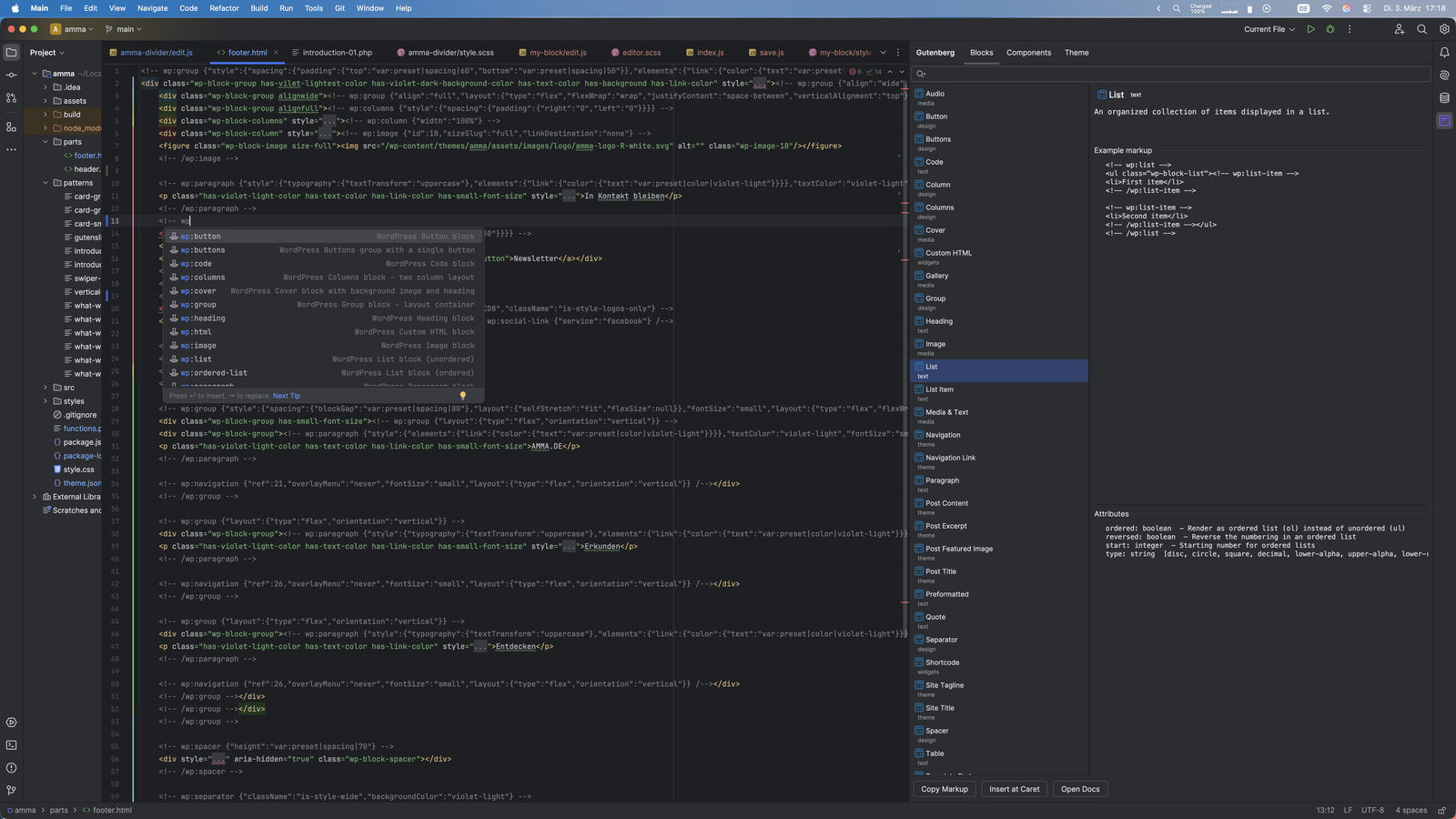
02
Block Browser
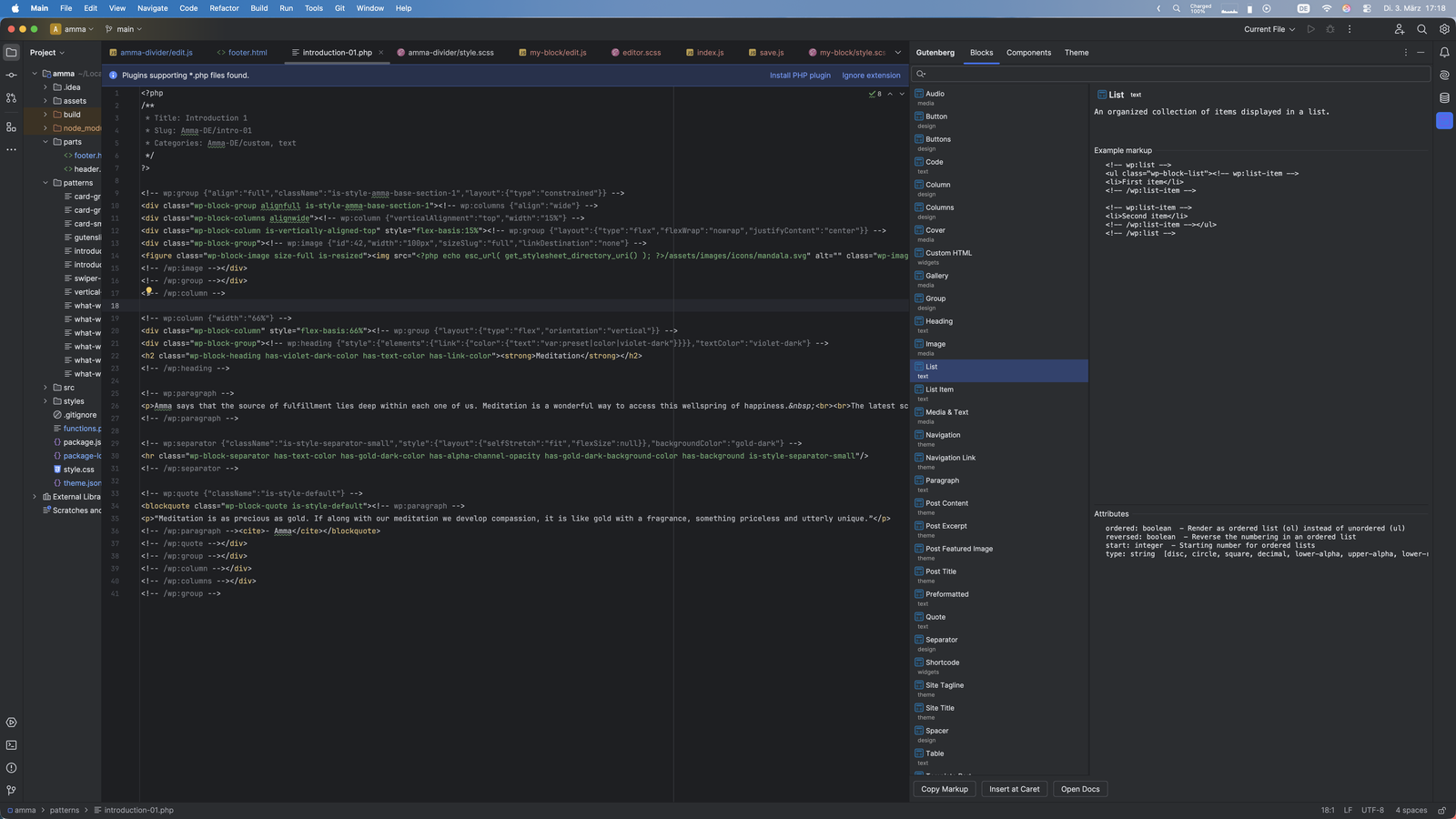
The Gutenberg tool window holds a searchable catalog of all core blocks. Select a block to see its description, example markup and attributes. Use Copy Markup, Insert at Caret or Open Docs. No typing needed.
03
@wordpress Components Browser
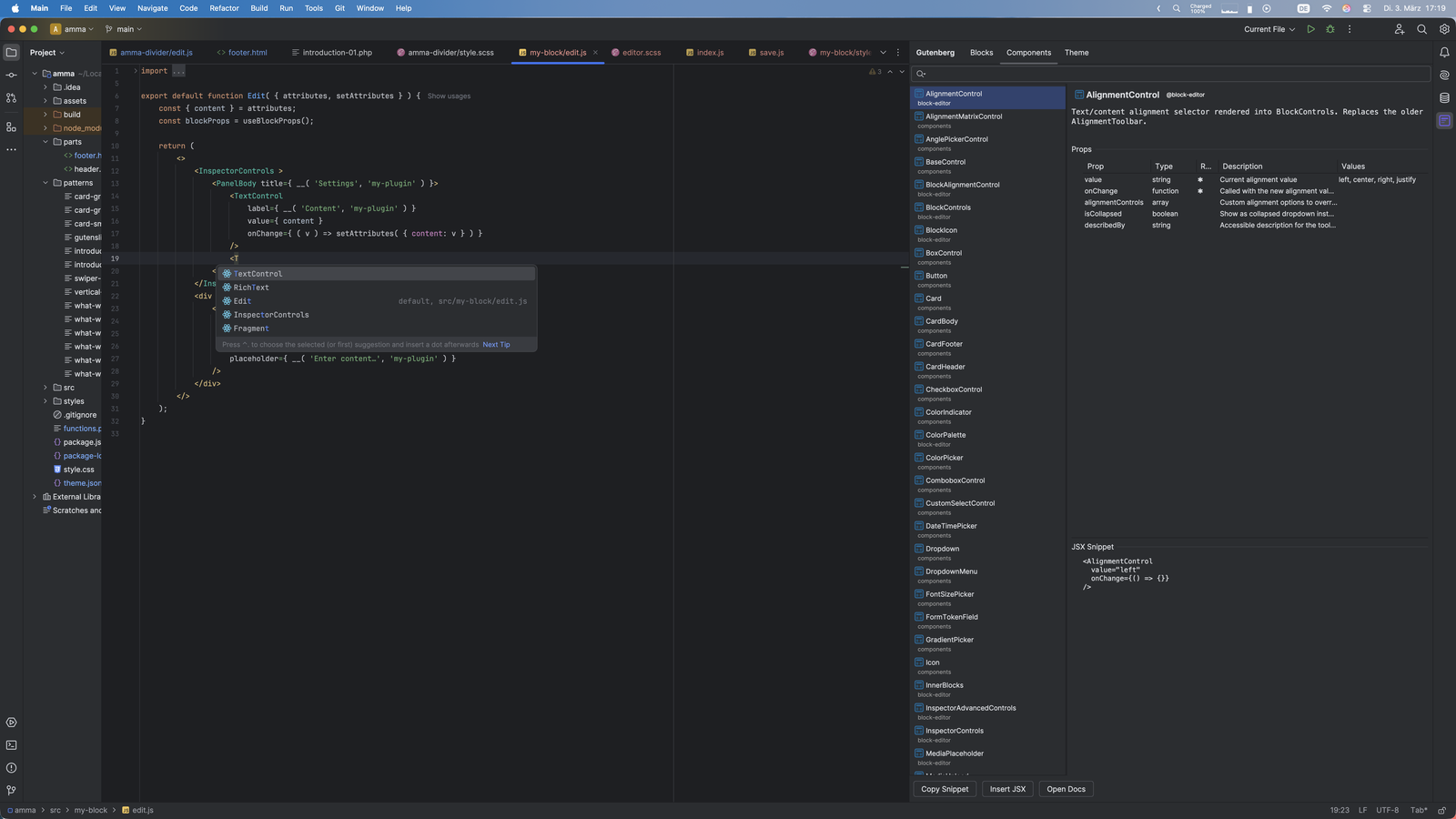
Browse the @wordpress/* React components in the Components tab. Each entry has a prop table with types and descriptions, and a JSX snippet to copy. Insert JSX adds the matching import statement at the top of the file.
04
theme.json Browser
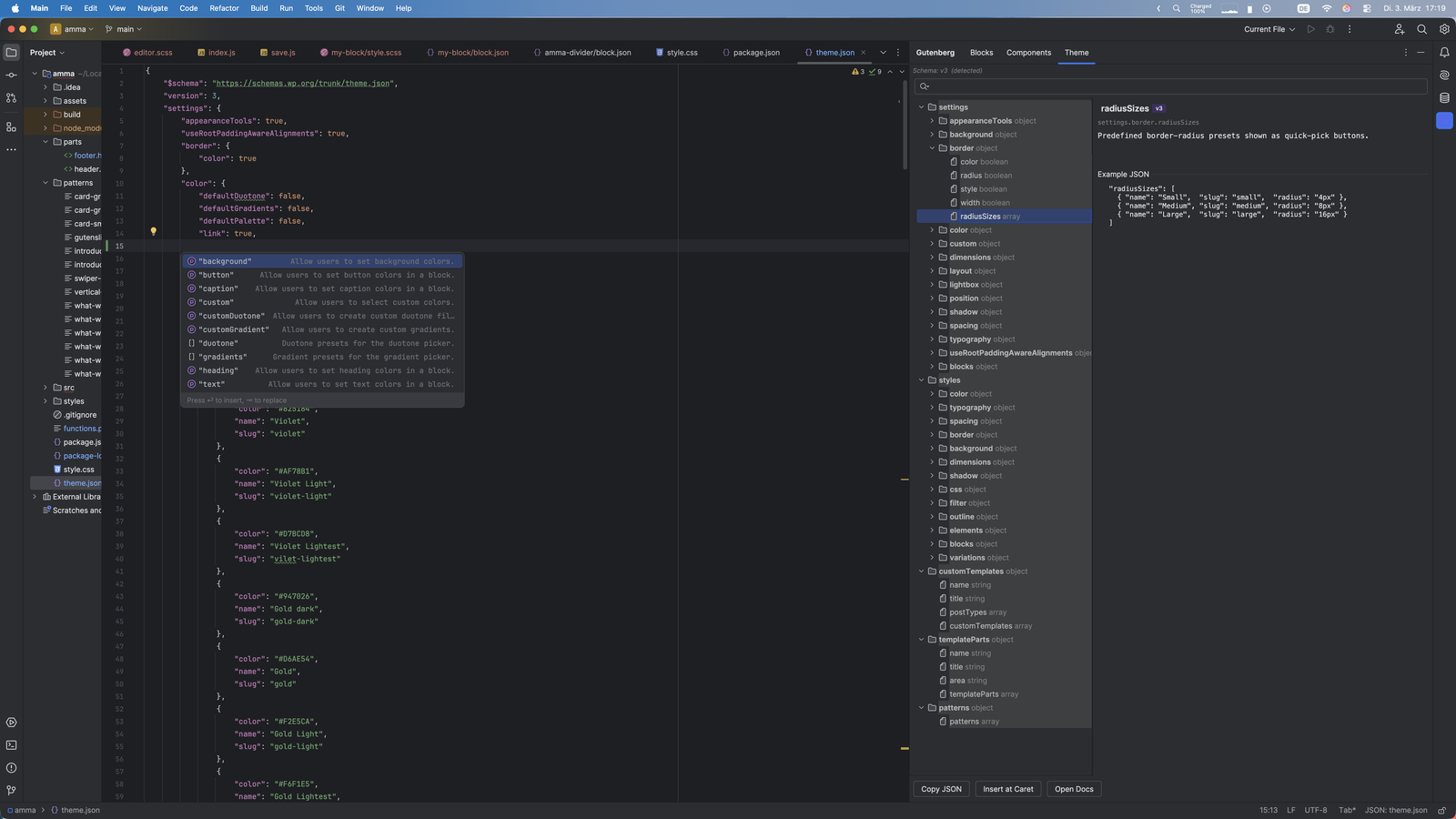
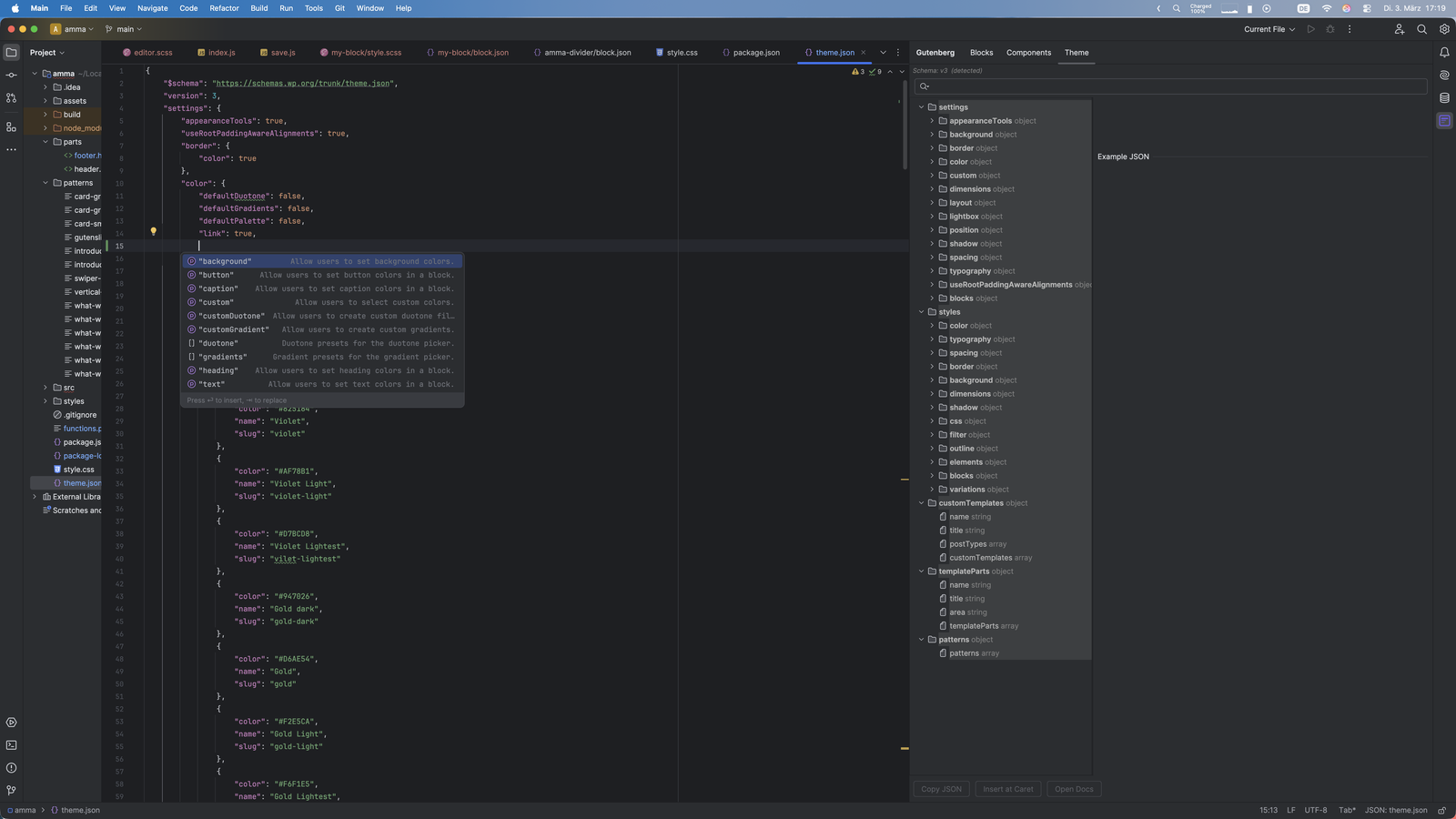
The Theme tab shows the theme.json schema as a tree: settings, styles, customTemplates, templateParts and patterns. Properties are tagged with the schema version. The plugin reads the $schema URL of your theme.json to detect the active version. Insert at Caret copies example JSON into your file.
05
theme.json Completion
Open theme.json and press Ctrl+Space. The popup lists the allowed keys, such as background, button, caption, custom and gradients, each with a short description.
06
Scaffold a Block
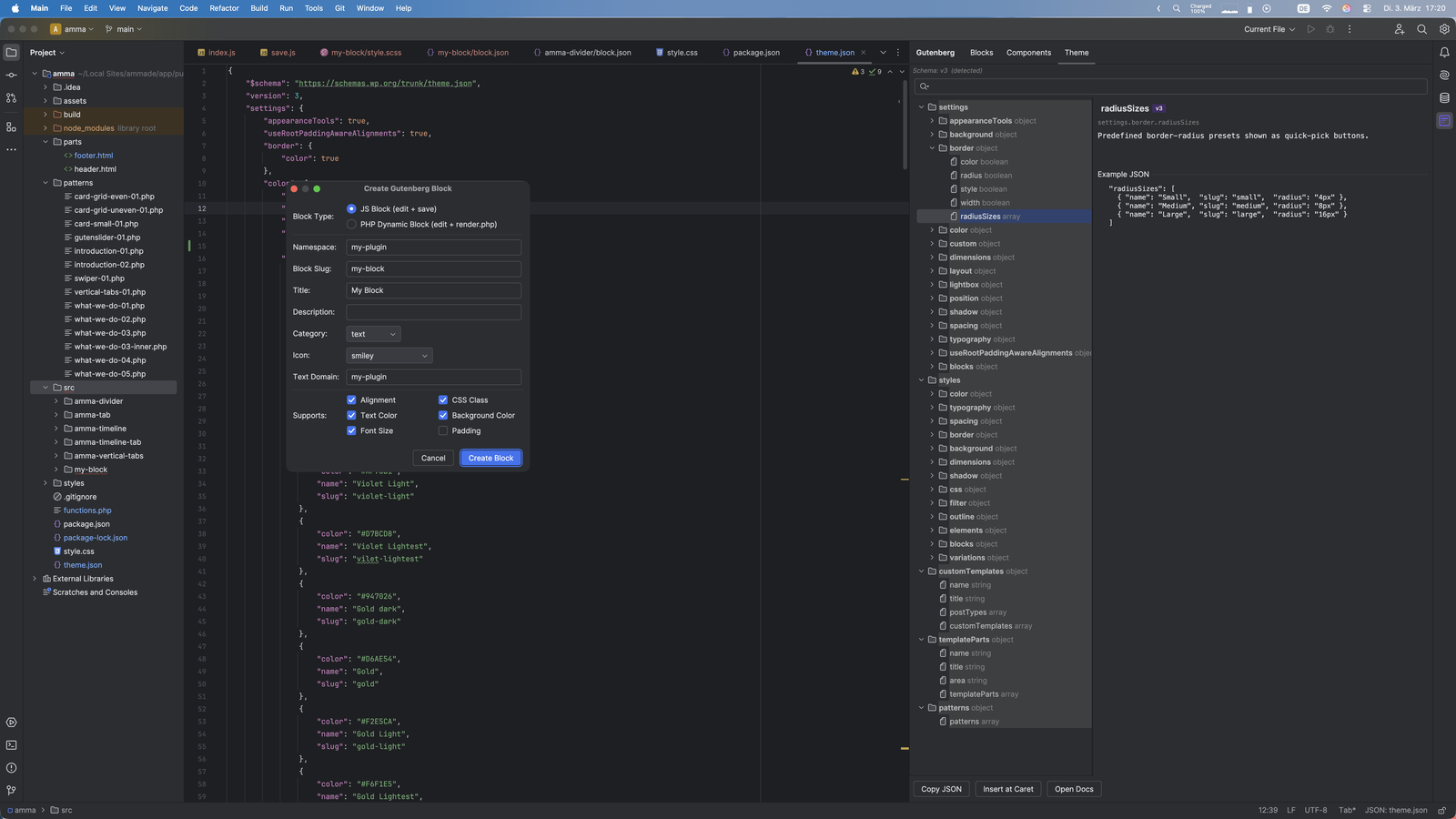
Use New > Gutenberg > Gutenberg Block to create a complete block directory. The dialog asks for the block type (JS block or PHP dynamic block), namespace, slug, title, category, icon and supported features. It creates block.json, index.js, edit.js and either save.js or render.php, plus editor.scss and style.scss.
Simple, Transparent Pricing
Start with a 7-day free trial. Purchase through JetBrains Marketplace.
Individual
For solo developers
$1.90/month
or $19/year (save 17%)
- Block autocomplete in HTML and PHP
- block.json schema validation
- Block and component browsers
- theme.json browser
- JavaScript block scaffolding
TEAMS
Organization
For teams and companies
$5.90/month
or $59/year (save 17%)
- Everything in Individual
- Organization license for teams and agencies
- The same 7-day free trial
- Purchase through JetBrains Marketplace
Students & open source contributors: Special discounts are available for individual developers and the open source community. Contact us.
Build Blocks and Themes Faster
Install Flexible Gutenberg from the JetBrains Marketplace and open a WordPress theme, plugin or block project. It works in PhpStorm, IntelliJ IDEA Ultimate and WebStorm 2023.3 and newer.